

How to Find a File You Just Saved on Windows or Mac
We’ve all been there—you save a file, close the window, and then… it’s gone. Or at least, it feels that way. You know you hit “Save,” but now you can’t find it anywhere. Whether it was an important document, a photo, or a download you needed right away, losing track of a file can be incredibly frustrating.
The good news? There are several easy methods to help you find a file quickly, no matter if you’re using Windows or macOS. In this guide, we’ll go step-by-step through built-in search tools, common save locations, and even introduce you to a powerful free app called Everything that makes finding files nearly effortless.
Quick Answer: Where to Look First
If you just saved or downloaded a file and cannot find it, start with these three places:
- Open File Explorer on Windows or Finder on a Mac and check the recent-files list.
- Look in the Downloads, Documents and Desktop folders.
- Search using part of the file’s name, or sort the folder by Date modified to show the newest files first.
Why Files Go Missing in the First Place
Before we dive into the solutions, it helps to understand why files sometimes seem to disappear. Most of the time, the issue isn’t that the file is gone—it’s just not where you expected it to be. Common causes include:
Saving in the wrong folder. Maybe you clicked “Save” too quickly without checking the location.
Misnaming the file. You thought you saved it as “Report,” but it was actually saved as “Report (1)” or something similar.
Different formats. You saved a Word document but expected it as a PDF—or vice versa.
Multiple accounts or drives. The file could have been saved in a OneDrive, iCloud, or Google Drive folder instead of your desktop.
Understanding these possibilities makes it easier to track down the missing file.
Step 1: Check Your Recent Files
If you just saved or opened the file, check your recent files first.
- Windows 11: Open File Explorer and select Home. Look under Recent. If it isn’t there, search for part of the filename in File Explorer.
- Mac: Open Finder and select Recents in the sidebar. You can also check File → Open Recent in the app you used.
If you downloaded the file from a website, check your Downloads folder next.
Step 2: Use Your Operating System’s Search Feature
Both Windows and macOS have built-in search tools that can help you locate files by name, type, or content.
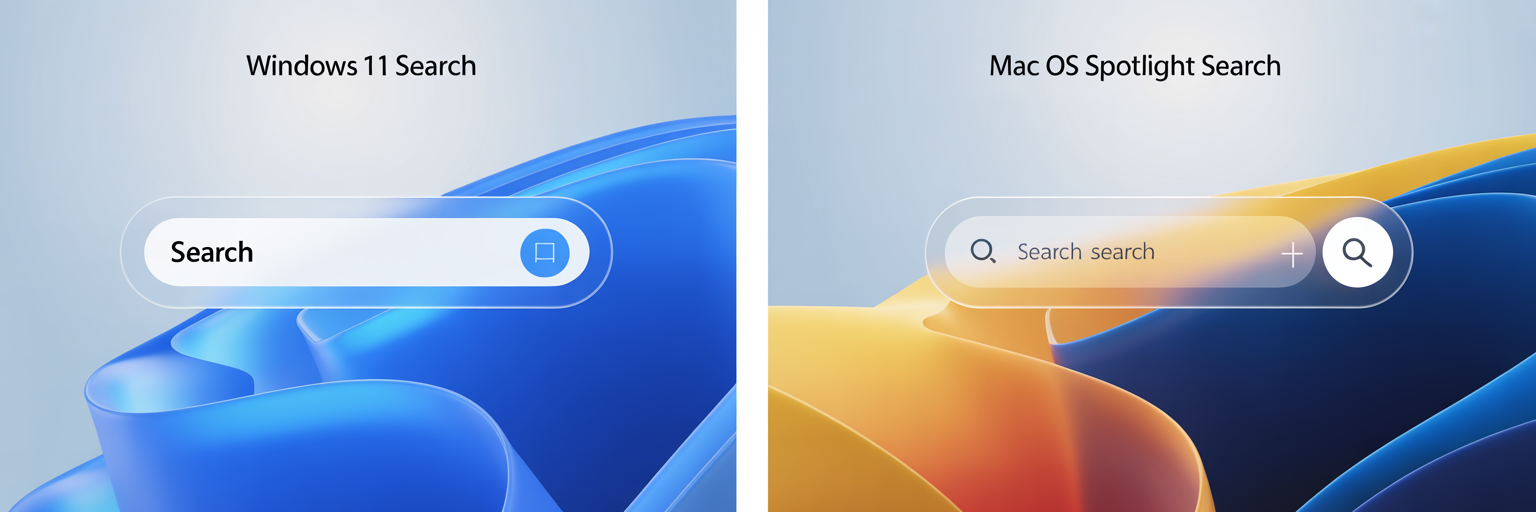
On Windows:
Press Windows Key + S to open the search bar.
Type part of the file name, or even just the file extension (like
.docx,.pdf,.jpg).If you don’t remember the name, try searching by keyword you know is inside the file.
On Mac:
Press Command + Space to open Spotlight Search.
Type part of the file name or file type.
Spotlight can also search text inside many file types, which is handy if you only remember part of the document’s content.
Step 3: Check the Downloads and Desktop Folders
Believe it or not, most “missing files” turn up in one of two places: Downloads or Desktop.
If you saved something from the web, it almost certainly went to Downloads by default.
If you created a new file without specifying a location, many apps (like Microsoft Word or Pages) default to the Documents or Desktop folder.
Pro tip: If you often misplace files, consider changing your browser or app settings to always ask where to save before downloading.
Also check cloud folders. On Windows, look in OneDrive’s Desktop and Documents folders if you use OneDrive. On a Mac, check Desktop and Documents inside iCloud Drive if iCloud syncing is turned on. If you use Google Drive or Dropbox, check those folders too. Your file may have been saved there instead of the local folder you expected.
If your Windows Desktop or Documents files unexpectedly moved into OneDrive, follow my guide to getting your files back on your PC.
Step 4: Check the Recycle Bin or Trash
The file may have been accidentally deleted or moved while you were organizing other files.
On Windows:
- Open the Recycle Bin from the desktop.
- Click the Date Deleted column to show the newest items first.
- If you find the file, right-click it and select Restore.
On a Mac:
- Open Trash from the Dock.
- Look for the missing file or sort the contents by date.
- If you find it, right-click it and select Put Back.
Restoring the file returns it to the folder where it was located before it was deleted.
Step 5: Look for Files Changed Recently
If you remember when you saved the file but not its name, use the date to narrow the search.
- Windows 11: Open File Explorer and check likely folders such as Documents and Downloads. Switch to Details view, then click the Date modified column to put the newest files first. Click it again if the oldest files appear first.
- Mac: Open Finder and press Command + F. Click the + button below the search field, then choose Date modified as a search criterion and set the date range.
If you find a likely file, open it to make sure it’s the one you need.
Step 6: Search by File Type
If you remember the kind of file, search for that type even if you don’t remember its name.
- Windows: Open File Explorer, choose the folder or drive you want to search, and type
*.pdffor PDFs,*.jpgfor JPG images, or*.docxfor Word documents in the search box. - Mac: Open Finder and press Command + F. Click the + button below the search field, choose Kind, then select the type of file you’re looking for. You can also type
kind:pdfin Finder’s search field to look for PDFs.
Search Documents and Downloads first. If you still don’t see the file, broaden the search to your computer.
Step 7: Try Everything Search (Windows Only)
If Windows Search still can’t find the file, a free program called Everything can be very helpful.
Unlike Windows Search, Everything creates an index of file and folder names on your computer, allowing search results to appear almost instantly as you type.
Why it can help:
- Searches file and folder names extremely quickly.
- Finds partial file names.
- Lets you narrow results by file type, size, date, and other criteria.
- Can often locate a file when you aren’t sure which folder it was saved in.
Everything is free and lightweight. After installing it, open the program and type any part of the file name you remember.
Step 8: Check for an Unsaved or Earlier Version
If you found the file but your latest changes are missing, check whether the app saved a recoverable copy.
- Microsoft Word, Excel, or PowerPoint: Reopen the app and look for a Document Recovery pane. You can also check File → Info → Manage Document for an option to recover an unsaved file. The wording varies by app.
- Mac apps that support document versions: Open the document and choose File → Revert To → Browse All Versions. Browse the available versions before restoring one.
Recovery depends on what the app saved, so an earlier version may not be available.
Step 9: Check the App’s Recent Files
If you remember which program you used to create or open the file, the program itself may be the fastest way to find it.
Microsoft Word, Excel, and PowerPoint:
- Open the program you used.
- Click File → Open.
- Look under Recent for the missing file.
- If you find it, open the file.
- To see where the file is actually stored, use File → Save As or look at the file information shown by the program.
Other Programs:
Many applications keep a list of recently opened files. Look for options such as File → Open Recent, Recent Files, or Recent Documents.
Once you find the file, make note of its location or use Save As to save a copy somewhere easy to find, such as your Documents folder.
This is worth including because someone may have no idea what the filename was, making several of the earlier search techniques difficult.
Step 10: Make Files Easier to Find Next Time
Once you’ve found the missing file, a few simple habits can make this much less likely to happen again:
- Use a simple folder structure. Keep files organized in folders such as Documents, Photos, Financial, or Work rather than saving everything to the Desktop or Downloads folder.
- Give files descriptive names. Instead of names like “Document1,” use something meaningful such as 2026 Taxes.pdf or Smith Invoice August 2026.pdf.
- Check where you’re saving the file. Before clicking Save, take a moment to look at the folder shown in the Save window.
- Clean out your Downloads folder periodically. Downloads can quickly become cluttered, making important files difficult to find.
- Understand where your cloud files are stored. If you use OneDrive, iCloud Drive, Google Drive, or Dropbox, know which folders are being synchronized with the cloud.
Frequently Asked Questions
Why can’t I find a file I just saved?
The file may have been saved to a different folder than you expected. Check your Downloads, Documents, Desktop, and Recent files first. If you use OneDrive, iCloud Drive, Google Drive, or Dropbox, check those locations too.
How do I find a file if I don’t remember its name?
If you remember approximately when you saved or edited the file, search by Date modified. You can also search by file type, such as PDF, Word document, photo, or spreadsheet.
Where do downloaded files usually go?
On most Windows PCs and Macs, files downloaded from the internet are saved in the Downloads folder by default. Your browser may also have a Downloads list that shows recently downloaded files and may let you open the folder containing them.
How do I find a Word document I saved but can’t find?
Open Microsoft Word and check File → Open → Recent. If the document appears there, open it and check where it is stored. You can also search your computer for part of the document’s name or for Word files using *.docx on Windows.
Can a file disappear from my computer?
Usually, a file that seems to have disappeared has been moved, renamed, saved somewhere unexpected, synchronized to cloud storage, or placed in the Recycle Bin or Trash. However, files can also be deleted or lost because of storage problems, so avoid assuming the file is permanently gone until you’ve searched thoroughly.
Still Can’t Find the File?
If you’ve tried these steps and still can’t find the file, don’t assume it’s gone. It may be stored in an unexpected folder, another user account, a cloud storage location, or somewhere else on the computer.
I help people find missing files and solve other computer problems remotely every day. In many cases, I can connect to your computer and help determine where the file went.
That Tech Jeff provides remote computer help anywhere in the United States. There’s no membership or subscription, and if I can’t fix the problem, there’s no charge.
Finding a File Doesn’t Have to Be Stressful
Losing track of a file can feel like a nightmare, but with these steps, you’ll be able to track down nearly anything you’ve saved. Start simple—check your recent files, Downloads folder, or search by name. If that fails, dig deeper with date modified searches or specialized apps like Everything.
Building better habits and using the right tools ensures you’ll spend less time hunting for files and more time actually using them.
So, the next time you can’t find that important document, don’t panic—just follow this guide, and you’ll be back on track in no time.
©thattechjeff.com
All right reserved
💡 DIY Computer Fixes?
Grab my easy step-by-step guide and keep your computer running like new.