💡 DIY Computer Fixes?
Grab my easy step-by-step guide and keep your computer running like new.
Top 5 Windows 11 Tips for 2026
Keep Your PC Running Smoothly, Securely & Faster Than Ever
Windows 11 continues to evolve, and 2026 has brought some fantastic improvements—along with a few new habits every user should adopt. Whether you’re using your computer for work, creativity, or simply staying connected with family and friends, these five tips will help you get the most out of your Windows 11 experience.
Let’s jump right in!
1. Boost Speed With Startup App Control
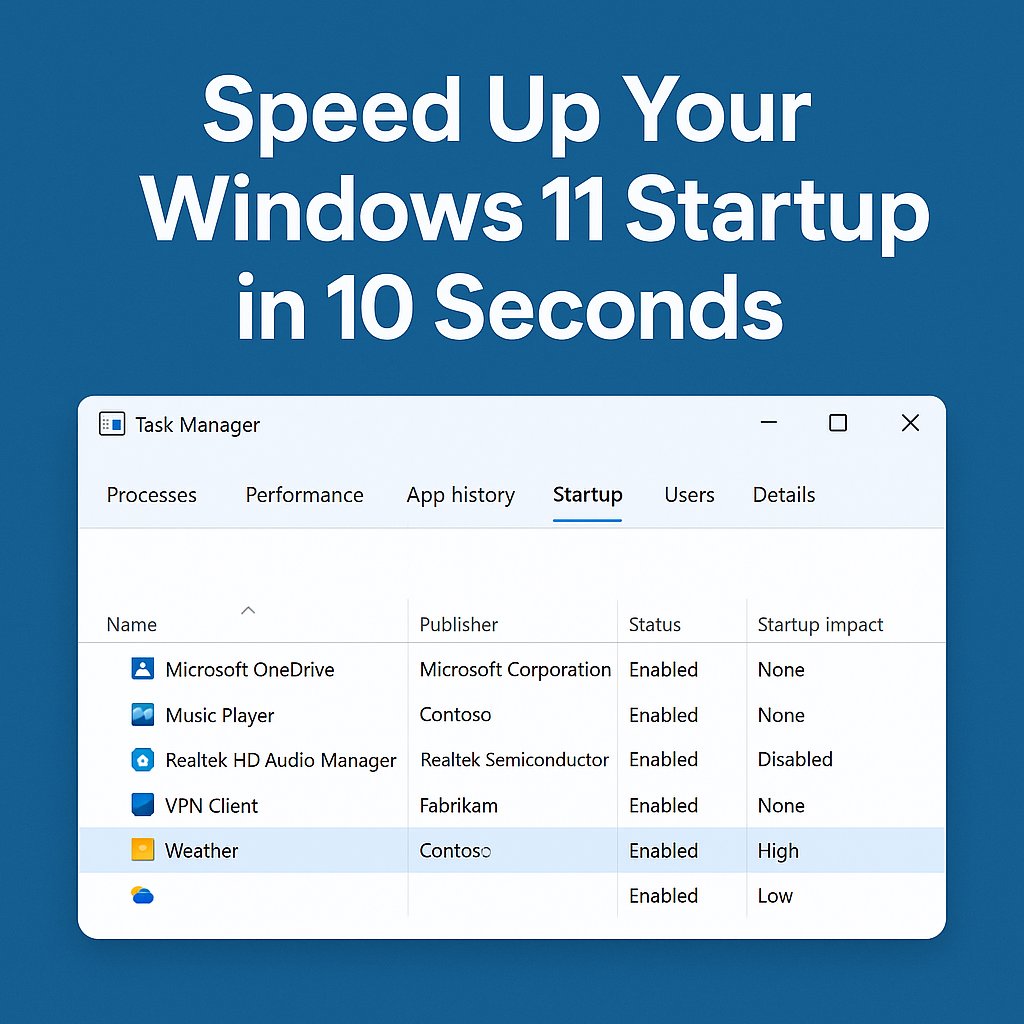
Over time, programs slowly sneak into your startup list—each one adding seconds (or minutes!) to boot time. Luckily, managing them is easier than ever.
How to do it:
-
Press Ctrl + Shift + Esc to open Task Manager
-
Click Startup Apps
-
Disable anything you don’t need to launch automatically
Focus on things like Spotify, OneDrive syncing, Adobe services—great apps, but not always necessary right at startup.
Result: Faster boot times and smoother performance right away.
2. Use Snap Layouts Like a Pro

Snap Layouts got smarter in 2026—and if you’re not using them, you’re missing out on productivity magic.
Try this:
Hover over the maximize button on any window → choose a layout → instantly arrange multiple apps on the screen.
Perfect for:
-
Side-by-side email + browser
-
Writing documents while researching
-
Video call on one side, notes on the other
Little tip: You can save layouts in Snap Groups and switch between them instantly.
3. Turn On Automatic Windows Updates (But Smartly)
Nobody loves updates—but keeping them on is one of the biggest ways to stay protected against online threats.
Do this instead of turning them off:
-
Go to Settings → Windows Update
-
Enable Active Hours so updates happen while you’re away
-
Turn on Smart Updates (newer feature) to avoid restarts during important sessions
Safe, secure, stress-free.
4. Use Copilot for Everyday Tasks
AI is now baked right into Windows 11—and Copilot is incredibly useful in 2026.
You can ask it to:
-
Summarize text or articles
-
Adjust system settings with voice or text
-
Generate quick replies, emails & ideas
-
Explain confusing tech terms (super helpful!)
Example:
“Copilot, free up disk space and close background apps.”
It will handle the heavy lifting for you.
5. Free Up Space With Storage Sense
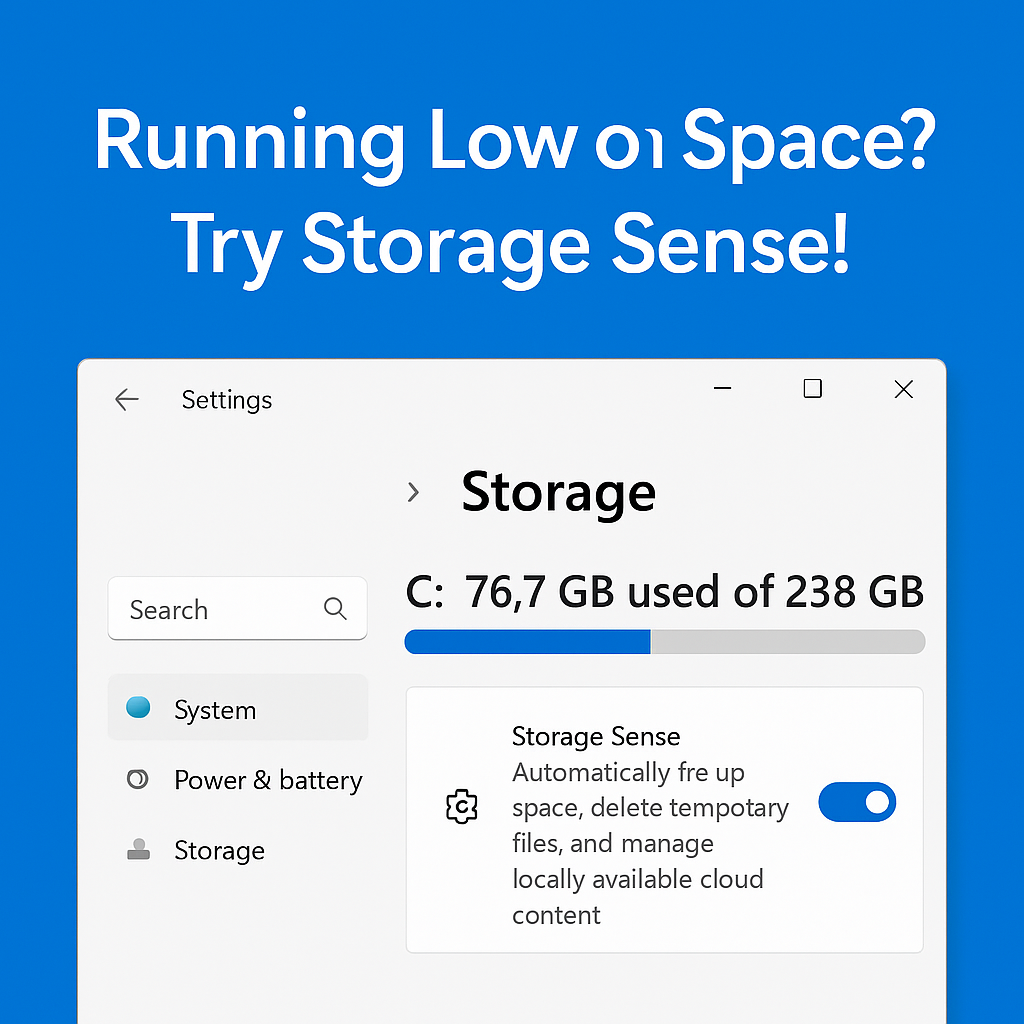
A cluttered PC is a slow PC. Storage Sense automatically deletes temp files, cleans recycle bin contents, and manages cloud storage.
Turn it on:
-
Open Settings
-
Go to System → Storage
-
Toggle Storage Sense ON
-
Click into it to schedule cleanup weekly or monthly
You’ll be surprised how much space you reclaim.
Windows 11 is growing into one of the most user-friendly, powerful versions of Windows we’ve ever seen—and using these five tips will help you stay ahead of the curve in 2026.
-
Your PC runs faster ✔
-
You stay safer online ✔
-
Your workflow becomes easier ✔
-
Less tech frustration ✔
More information
Microsoft Windows 11 Tips & Features — Official hub for tips on getting the most out of Windows 11.
7 Tips to Get the Most Out of Windows 11 — Microsoft’s learning center with practical usage tips.
How to Master Windows 11 for Maximum Productivity — A broader walkthrough of customization and efficiency features.