💡 DIY Computer Fixes?
Grab my easy step-by-step guide and keep your computer running like new.
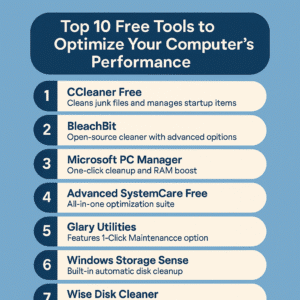
Top 10 Best Free Tools to Speed Up & Clean Your PC in 2026 🖥️💨
Is your Windows PC running slow, freezing, or taking forever to boot up? Over time, computers collect clutter — old junk files, leftover installs, malware, and programs that run at startup. The good news: you don’t need to spend money to clean up your system and boost performance.
I’ve tested dozens of tools, and here are the 10 best free ones that really work.
🧹 1. CCleaner Free — Best All-Around Cleanup Tool
A long-time favorite for a reason, CCleaner removes temporary files, browser junk, and optional registry clutter — all in a few clicks. It also lets you control startup programs.
Best for: quick cleanup + startup control
Key Features:
-
Removes browser and system junk
-
Manages startup items
-
Cleans registry errors (optional)
🪣 2. BleachBit — Open-Source Cleanup Powerhouse
BleachBit is like CCleaner’s rugged, free-for-life cousin. It digs deep into caches, logs, and system junk — and can securely shred files so they can’t be recovered.
Best for: privacy-conscious users & deep cleaning
Key Features:
-
Cleans cache, cookies, logs, and more
-
Shreds files securely
-
Has no paid version—everything is 100% free
🛠️ 3. Microsoft PC Manager — Built by Microsoft
This newer tool from Microsoft offers one-click cleanup, RAM boosting, startup app control, and even update monitoring. Since it’s from Microsoft, it’s safe and won’t conflict with Windows.
Best for: simple all-in-one maintenance
Key Features:
-
One-click cleanup and RAM boost
-
Windows Update monitoring
-
Startup app control
🧠 4. Advanced SystemCare Free — All-In-One Optimizer
From IObit, this dashboard-style tool handles junk cleanup, privacy sweep, and startup tweaks. The free version is powerful enough for regular maintenance.
Best for: beginner-friendly, dashboard controls
Key Features:
-
Deep junk cleaning
-
Startup optimization
-
Privacy sweep
🧰 5. Glary Utilities — Swiss Army Knife for PC
Glary has over 20 tools built in — from disk cleanup to duplicate finder and memory optimizer. One-click maintenance makes it painless.
Best for: extra tools beyond just cleanup
Key Features:
-
1-Click Maintenance option
-
Duplicate file finder
-
Memory optimizer
🧠 6. Windows Storage Sense — Built-In and Automatic
You don’t always need third-party tools. Storage Sense (built into Windows 10 & 11) can automatically clean temporary files, empty Recycle Bin items, and more — on a schedule you choose.
Best for: automated maintenance without installs
Key Features:
-
Built right into Windows
-
Customizable to run on schedule
-
No installation required
🗑️ 7. Wise Disk Cleaner — Lightweight & Fast
A no-nonsense cleanup tool that removes temporary files and browser caches. It also includes a disk defrag tool — great if your PC still uses a traditional hard drive.
Best for: fast cleanup with defrag support
Key Features:
-
Fast and lightweight
-
Safe for beginners
-
Includes disk defrag tool
🛡️ 8. Malwarebytes Free — Essential Malware Removal
Slowness isn’t always junk files — sometimes it’s malware. Malwarebytes Free is a fantastic malware and adware scanner that finds and removes threats other tools miss.
Best for: malware & unwanted program cleanups
Key Features:
-
Real-time scanning (in Premium version)
-
Finds and removes adware and PUPs
-
Lightweight and fast
🧩 Is Your PC Sluggish Because of Malware? Here’s How to Tell
🚀 9. Autoruns — Ultimate Startup Control
This Microsoft Sysinternals tool shows everything that runs at startup — not just the basics. It’s powerful for finding hidden bloatware or programs slowing your boot time.
Best for: advanced startup management
Key Features:
-
Reveals hidden startup programs
-
Helps disable bloatware
-
Ideal for advanced users
🧰 10. AdwCleaner — One-Click Adware & PUP Removal
From the makers of Malwarebytes, AdwCleaner targets adware, toolbars, and potentially unwanted programs — things that quietly slow down your browser and system.
Best for: stubborn adware removal
Key Features:
-
One-click adware removal
-
Browser cleanup included
-
No installation required
⚡ Bonus Tips for Getting the Most Out of These Tools
✅ Don’t Run Them All Together
You don’t need to run 10 tools every day. Pick 2–3 you like and run them monthly for the best results.
💾 Back Up Before You Cleanup
Some tools can delete browser data, saved passwords, or registry entries. It’s always good to back up before running a big cleanup.
🚫 Avoid Fake “Free” Tools
Some malware pretends to be cleanup software. Stick with the trusted names above.
Should You Upgrade to Paid Versions?
Many of the tools above offer premium upgrades. But unless you need real-time monitoring or extra security features, the free versions are more than enough for basic PC maintenance.
💡 When Free Tools Aren’t Enough
Even the best free tools can’t always fix deep-seated issues — persistent startup problems, hidden background errors, or complex malware. If you’ve tried these and your PC still feels sluggish, I can help you dig deeper and fix it permanently, with a flat-rate service you can trust.
🧾 Quick Recap
-
Use CCleaner or BleachBit for general junk cleanup
-
Try Malwarebytes Free or AdwCleaner for malware/adware problems
-
Use built-in Windows tools like Storage Sense for hands-off maintenance
Still Have Questions?
Got a question about which tool is best for your specific situation? Or maybe your older laptop is acting up and none of these are helping?
🧩 Ask Me Anything – I Love Helping People Fix Their Computers
Thanks for reading! If this helped, share it with a friend or bookmark it for your next PC tune-up.