

Windows 11 Tip Every Senior Should Know: How to Make Text Bigger (Without Blurring Anything!)
If you’re like many of my customers, you may find that your Windows 11 computer is beautiful… but the text is just too small. And when text is too small, using a computer suddenly becomes a lot less fun and a lot more frustrating.
I get messages every week from seniors who tell me the same thing:
“Jeff, I can’t read half the stuff on my screen anymore… and when I try to make things bigger, everything gets blurry!”
The good news?
Windows 11 actually has a setting that lets you make text larger crisply and clearly, without stretching or blurring anything. Most people don’t know it exists — and even fewer know the right way to use it.
Today, I’m going to show you exactly how to do it.
Why This Matters (Especially for Seniors)
Tiny text isn’t just annoying — it can cause:
Eye strain
Headaches
Bouncing back and forth between glasses
Missing important information
Clicking the wrong thing because text is too small
And most “fixes” you see online actually make everything fuzzier. That’s because they change the screen resolution… which is not the right solution.
Instead, we’ll use Windows 11’s built-in accessibility tools that increase readability while keeping everything sharp.
The Right Way to Make Text Bigger in Windows 11 (No Blurry Edges!)
Here’s the exact step-by-step method I teach my customers:
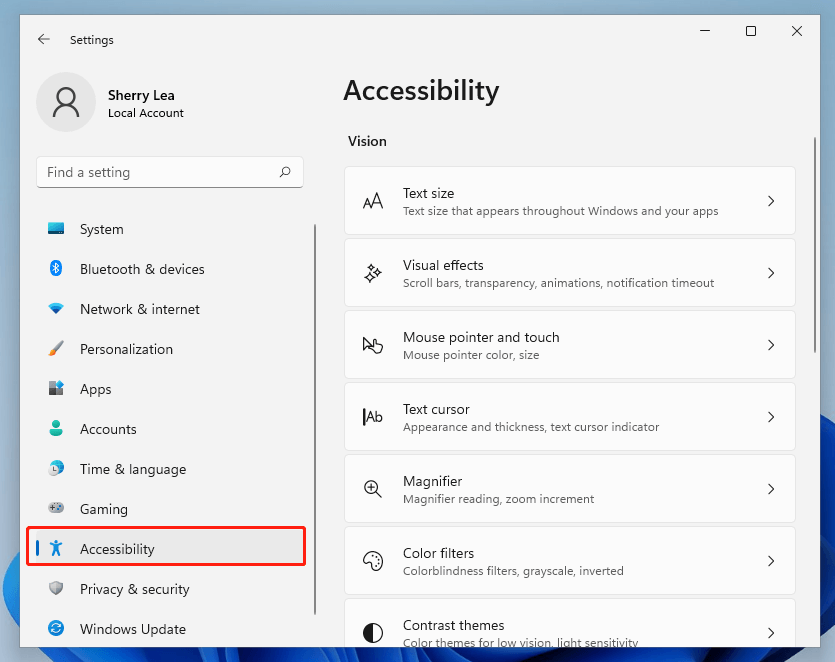
1. Open Settings
Click the Start button → choose Settings
(or press Windows key + I on your keyboard).
2. Click on “Accessibility”
It’s on the left side of the window.
3. Select “Text size”
You’ll see a slider.
4. Move the slider to choose a new text size
As you slide it, you’ll get a preview before you commit.
For most seniors, 115%–135% is the sweet spot — big enough to read comfortably, but not so big it throws off the layout of the screen.
5. Click “Apply”
This instantly makes menus, folders, and system text larger and clearer — without changing your screen resolution.
Bonus Tip: Make Web Pages Easier to Read Too
If websites still look too small, here’s a secret trick I rarely see mentioned:
Press CTRL and + (plus) to zoom in
Press CTRL and – (minus) to zoom out
Press CTRL and 0 to reset
This works in:
Chrome
Edge
Firefox
Brave
And nearly every browser out there
It adjusts only what you’re looking at — not your whole computer — and seniors absolutely love this trick.
Why Most People Get This Wrong
Most tutorials tell people to:
Lower their screen resolution
Change display scaling too far
Adjust browser zoom only
And that leads to one thing every time: blurry icons and fuzzy text.
The Text Size setting in Windows 11 is the only correct solution for increasing readability system-wide without sacrificing clarity.
Final Thoughts
I help seniors every day who struggle with small text and tired eyes. And most of them have no idea that Windows 11 has a clean, easy-to-use tool built right into the system to fix it in seconds.
If you found this helpful and want more easy Windows 11 tips, I’m always here to help — no pressure, no upsells, just old-fashioned friendly computer help from someone who enjoys making tech less stressful.
And if you’d like hands-on help getting your computer cleaned up, organized, or running faster, you can always reach me at ThatTechJeff.com.
💡 DIY Computer Fixes?
Grab my easy step-by-step guide and keep your computer running like new.